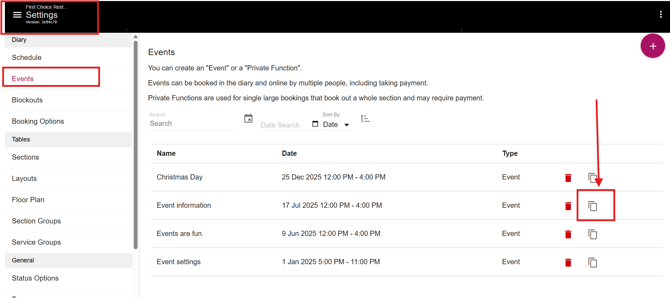
After creating an event, you can choose to duplicate it and change the date to a new date. This will retain the original event settings and apply them to the new date, saving you from having to recreate the event from scratch.
To duplicate an event, please complete the following steps from your restaurant diary:
- Click on the three white lines on the top left-hand corner of your page, then click Settings.
- Click on Events.
- Next to your existing event, click on the two grey pages on the right-hand side to duplicate the event.
- Change the date of the event.
- Make any required changes to the event, such as widget description, settings, sections and layouts and payments and booking options
- Click Save.