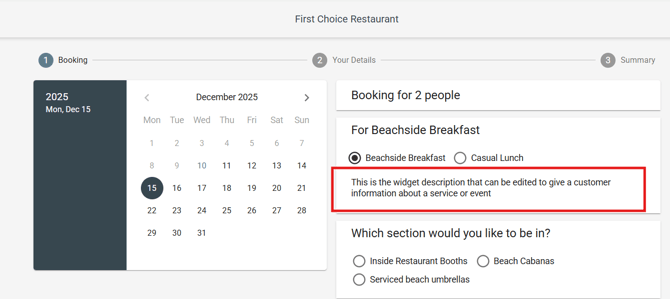
The widget description provides information about the service or event in the booking widget that customers see when they navigate to a date to make a booking:
To edit the widget description for a specific service in Now Book It:
- Go to your restaurant diary and click the three white lines in the top left corner, then select Settings.
- In your Schedule, click on the day for the service you want to edit.
- Select the specific service you'd like to update.
- Under the Service tab, find the Description field. Here you can enter or update the description that will appear on your booking widget.
- You can also add images by including an image link with HTML code (e.g.,
<center><img src="IMAGE_LINK" width="250" height="250"></center>), and include links to menus or other details. You can resize the image by changing the values for the 'width' and 'height.' - Click Save when you’re done.

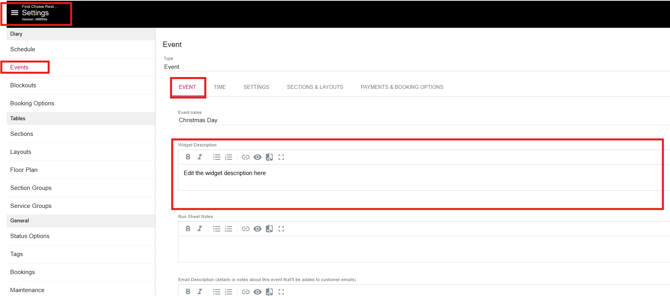
To edit the widget description for a specific Event in Now Book It:
- Go to your restaurant diary and click the three white lines in the top left corner, then select Settings.
- Click on Events
- Select the specific Event you'd like to update.
- Under the Event tab, find the Description field. Here you can enter or update the description that will appear on your booking widget.
- You can also add images by including an image link with HTML code (e.g.,
<center><img src="IMAGE_LINK" width="250" height="250"></center>), and include links to menus or other details. You can resize the image by changing the values for the 'width' and 'height.' - Click Save when you’re done