
Logging in for the first time
- Head to your admin portal at admin.nowbookit.com to set up your log in details
- Use your email address as your username
- Your password should contain a capital letter, a number and be 8 or more digits
- Once created, log in to your account
Admin Portal
This is your Admin portal, where you can control settings for your online booking widget, email content, add an E-way or Stripe account, manage users, and control gift card settings.
On the top right corner, you will see an Open Restaurant button that links to your diary. 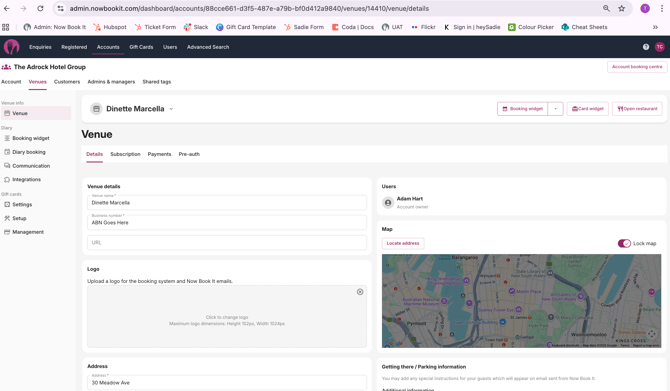
Restaurant Diary
This is your Restaurant Diary, where you can access your diary and all bookings. Here, your staff will be able to add phone bookings and walk-ins, check booking details, and so on.
The Diary is the default view, and you can also switch to Table or Runsheet views by selecting the icons on the top menu bar.
You can also access Restaurant Settings here through the menu on the top left corner. 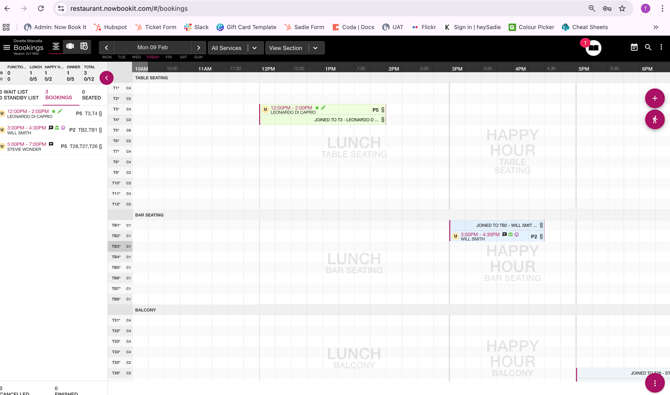
Table View
You can access Table View through the table icon on the top menu bar. Similar to the Diary view, you can add phone bookings and walk-ins.
Think of this view as a traffic light system –
Green – Available table
Amber – A booking is approaching on the table
Purple/Red - Occupied table
Hover over the little dots on each table to see the upcoming bookings scheduled for that table. 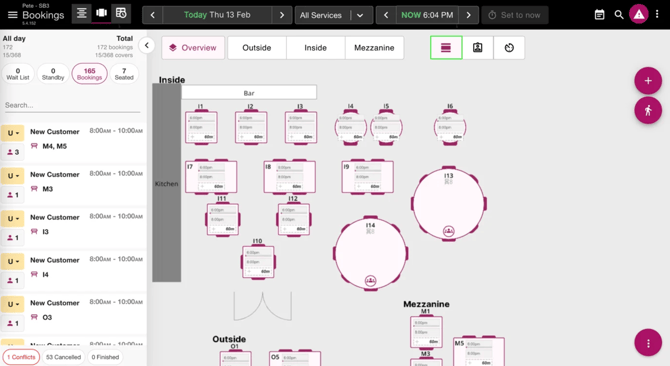
Runsheet View
On the right of the table icon on the top menu bar, you can access your runsheet view.
This will give you a handy snapshot of the day’s bookings, including how they were booked (online, phone, AI, walk-in, etc), as well as customer details, booking notes, and tags.
You can also download or print the runsheet easily by clicking the purple buttons on the top right. This comes in handy to brief staff before a busy service. 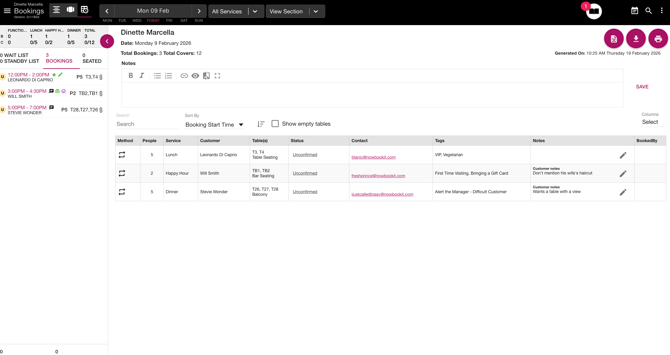
Daily Message
Every view includes a Message section at the top. Use this to highlight important reminders or quick tips to your staff handling the booking system. 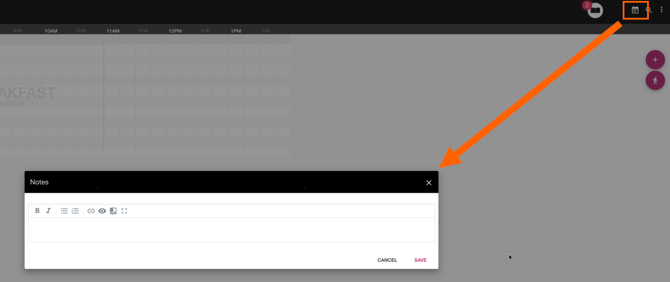
Add a New Booking
- To add a new booking, click the purple person icon on the right.
- A New Booking window will pop up for you to populate.
- Enter booking details as necessary, including customer info, booking date and time, seating, tags, and notes.
- You can save the booking without completing the details; however, we encourage you to start tagging customers and applying notes as soon as you can — this helps you and your staff identify bookings easily for a better experience.
- The system will auto select the best table based on the booking requirements, but you can override this to assign a suitable table.
Tip: When populating manual bookings, make sure to enter the customer’s email address to begin building your database for future marketing purposes! 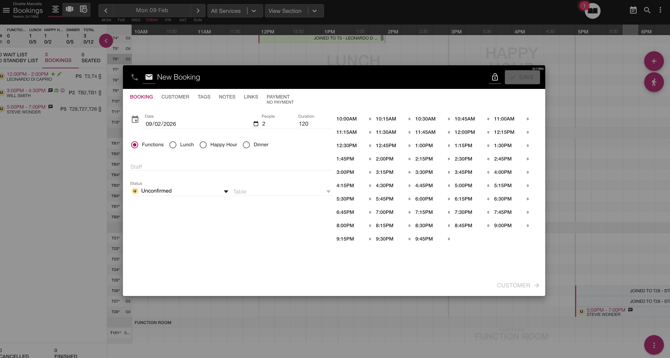
Events and Functions
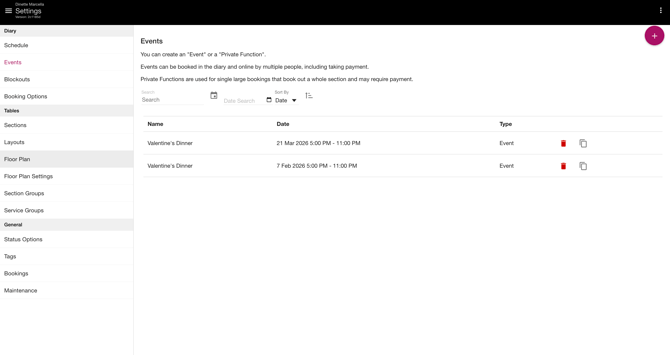
You can manage events and private functions directly within your Now Book It system, and these are all synced to your diary.
You also have the capacity to take pre-authorisation payments, booking deposits, or full payments for events or large group bookings.
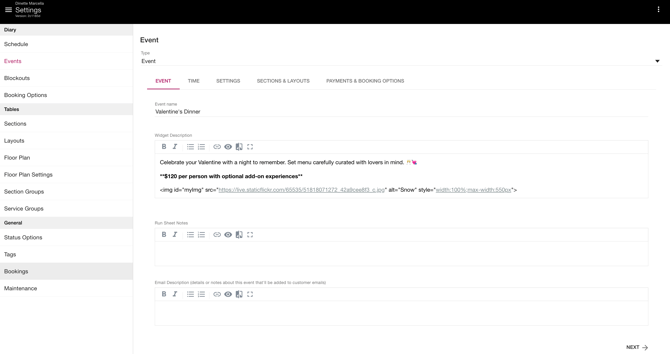
To access events, head to your Diary Settings on the top left corner of the menu bar and select Events on the left sidebar.
Creating a New Event / Function
- To create a new event, click the + icon on the top right corner
- Complete the 5 sections across the top to populate event info, time, details, sections required and payment info.
- Once the event is successfully created, you can find the Event Booking URL under Payments & Booking Options. This can be used to promote your event and allow customers to book quickly.
Blockouts
Blockouts can be used to easily restrict bookings on pre-planned periods, such as special closures or during peak trading hours. Once created, these automatically sync to your diary.
To access blockouts, head to Settings on the top left corner of the menu bar and select Blockouts on the left sidebar.
Click the + icon on the top right corner to create a new blockout.
Tip: There is also a shortcut on your Diary View to allow you to create quick blockouts — just look for the 3 dots on the bottom right. 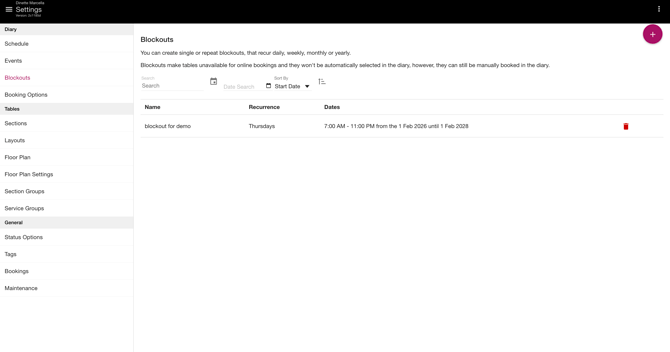
Booking Widget URL
You can find your booking widget URL in your Admin portal. On the left sidebar, look for Widget Links under Diary.
Once you’re all set up, make sure to add your booking widget URL to your website and social platforms. This ensures diners can book your venue easily.
Booking Widget URL for a Specific Day/Date
Need a booking link that takes you to a specific day or date? You can edit any of your Event Booking links to do so easily.
- Head to Diary Settings on the top left corner of the menu bar and select Events on the left sidebar
- Select any created events and go to the Payment & Booking Options to find the Event Booking URL
The standard link should look like this:
https://bookings-uat.nowbookit.com/?accountid=d322f550-15d2-43c7-8954-afcc6c31714a&theme=light&accent=hex,f8bbd0&venueid=520&font=Libre%20Baskerville&date=2023-07- 01&serviceids=event_WIIQ04H2KB0TO_1682310135353
To customise this for a specific day/date, remove anything after the word ‘event’, which is the code highlighted below.
https://bookings-uat.nowbookit.com/?accountid=d322f550-15d2-43c7-8954-afcc6c31714a&theme=light&accent=hex,f8bbd0&venueid=520&font=Libre%20Baskerville&date=2023-07- 01&serviceids=event_WIIQ04H2KB0TO_1682310135353
Then, change the date (highlighted) to the desired day or date of booking using the same format.
https://bookings-uat.nowbookit.com/?accountid=d322f550-15d2-43c7-8954-afcc6c31714a&theme=light&accent=hex,f8bbd0&venueid=520&font=Libre%20Baskerville&date=2023-07-01&serviceids=event 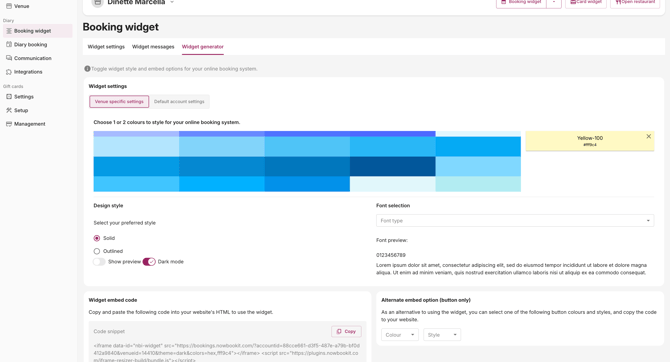
More quickstart guides:
- Getting to Know Floor Plan
- Getting Started with Gift Cards
- Reserve on Social
- Connecting to eWay