
Now Book It offers a built-in electronic Gift Card widget and management portal. This portal integrates seamlessly with your website and Admin Panel, and allows eGift Cards to be purchased online.
eGiftcards can be sent directly to the customer or to the recipient of the card via email. There is a fee, however this fee can be passed onto the customer as an administration fee if you wish. The fee is deducted from all transactions before it you receive the funds into your nominated bank account.
Payments are processed via Stripe or eWay, depending on which gateway you selected during initial account setup.
Links
- Login to Now Book It Admin (admin.nowbookit.com), select your venue
- On the left bar, select "Settings" under "Gift Card"
- This page is where you can set up the colour scheme and appearance of your Gift Card widget, including the theme an colour of the gift card. If you make any changes, make sure to click "Save" on the lower right.
- The "Widget Embed Code" tile will allow you access to the URL to your Gift Card page
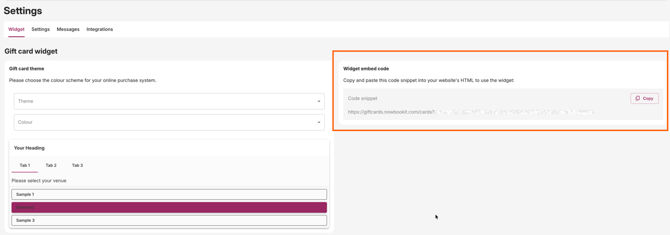
For further details on widget configuration please see the document link below. Note that these are much more advanced and will require someone with a good technical knowledge of websites to configure. Widget modifications and iframes
Gift card settings
Select Settings from the list under the Gift Cards heading on the left hand side of the Admin Panel. The following window will appear:
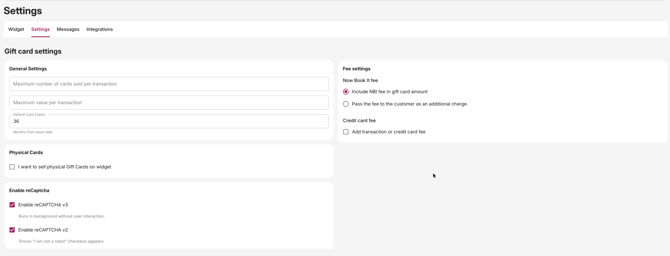
- Under the general settings heading, enter in a number to the number of cards sold per transaction. This is to limit the of purchases made per transaction in case of card fraud.
- Enter in a maximum value per transaction. This is to limit the total amount of purchases made per transaction in case of card fraud.
- Enter in a default expiry for all cards in months.
- Note: In Australia and New Zealand, the law states that all gift cards have an expiry date of at least 36 months.
Now Book It Fee
Gift Card Fees
You can elect to absorb the 1.99% administration cost of gift card transactions, or pass this on to the customer during the checkout process.
Select Yes if you would like to absorb this cost, or wish to make amendments to your gift card prices to allow for NBI fees of 1.99%.
Select No if you want to pass the Now Book It fee on to the customer. They will have to pay this as an additional fee when completing a transaction online.
Credit Card Fee
If you would like to add a transaction fee to all purchase made by a credit card to you gift cards you can do so here.
- Select the tick box for Add a Transaction or Credit Card Fee.
- Select $ of Per card $ or % per transaction.
- Depending on your selection, you may now add an additional charge to the customer. Then enter in the name of the Fee you have added as it will appear on the invoice sent to the customer when they make a purchase.
Experience Gift Cards
Now Book It also offers an Experience Gift Card, in which instead of having a monetary value, you are able to name the experience and attach a value to this, if you are requesting to have this feature on your account, please contact your Now Book It Account Manager in order to set this up.
Physical Gift Cards
If the you would like to sell physical giftcards via the Gift Card Widget, you can also do so by enabling physical cards on your widget settings. This allows you to manage existing card stock via the Now Book It transaction management portal.
Requests for physical cards are processed via the same online widget and allow customers to add a custom message and pay online. The venue will then receive an email with all the details of the card type, cost, address of purchaser and recipient, payment transaction details and any specific notes to recipient. Venue can then post cards to the recipient or let them pick up cards directly from the venue.
If you wish to sell physical cards on the Gift Cards widget:
- Select the tick box next to Sell physical cards.
- If you are happy to hand write messages on physical cards select the tick box next to Allow customers to add a message.
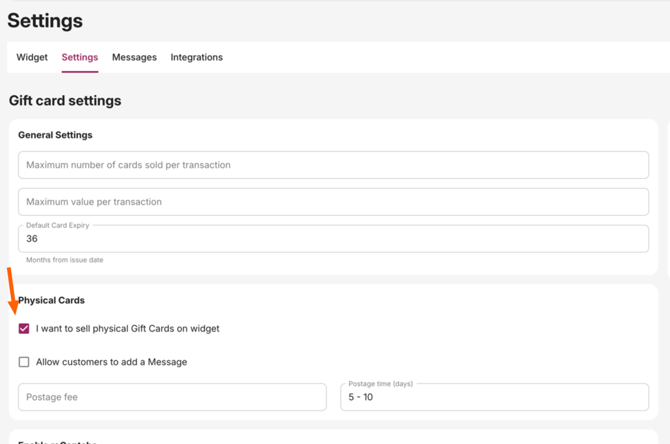
- Enter a postage fee to mail out cards to customers.
- Enter an expected postage delivery time.
Gift Card Messages
To customise the messages that customers see when purchasing a gift card:
Select "Messages" under "Settings" 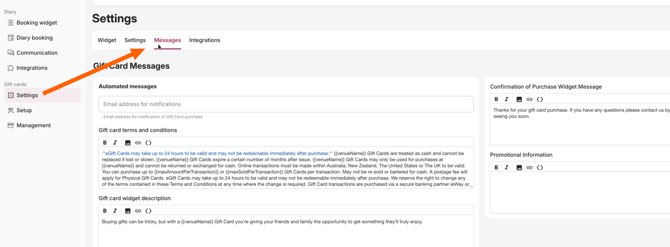
- Enter the email addresses of any venue staff who wish to receive notifications regarding Gift Card purchases.
- Edit the default text that you would like customers to see under each respective circumstance/heading.
- Add any venue promotional information you wish to include with gift cards (such as upcoming events, social media handles or special offers).
In this area you able to configure the appearance of electronic gift card itself, and see a preview of what will be emailed to customers.
Click on "Setup" under "Gift Cards" 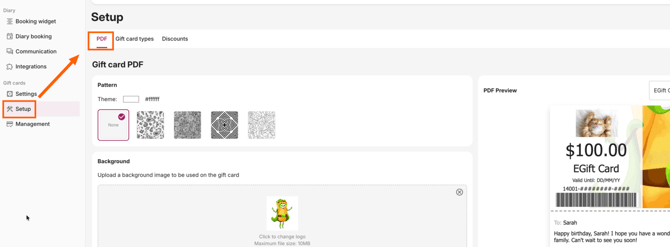
- Change the colour of the gift card by selecting the colour box.
- Add a pattern or leave the gift card blank.
- Under the Background heading, you can add an image (Image specs 680x640px) to display on the top of the gift card, as shown in the preview below. Please note that the logo from the Details page will be automatically pulled into your gift card template.
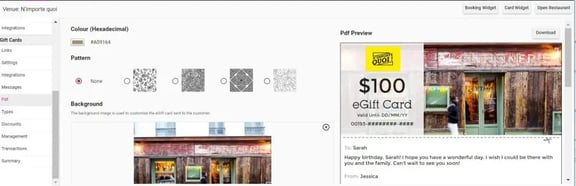
4. Select Save & Next.
Types
In this area you able to configure the types of cards that you would like to offer (eGiftcards, Gift Card Experience and Physical).
- Select "Gift Card Types" under "Settings" for Gift Cards.
- Select the "Create New Card Type" button in the top right side of panel to start adding cards to inventory.
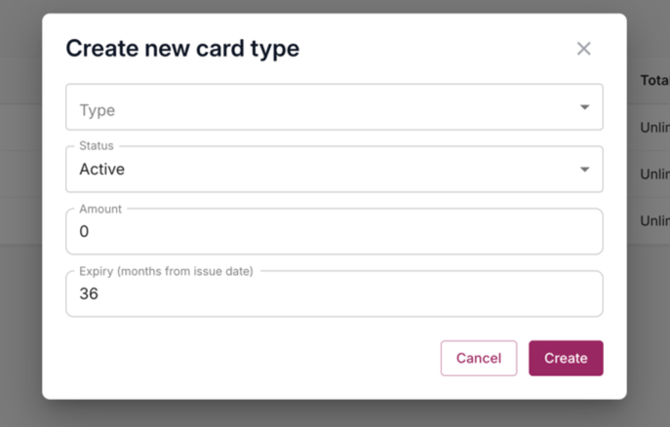
3. Enter in the Type of card you wish to add (electronic or physical). Status should be set to active (this can be changed to deactivate cards at anyt time).
4. Enter in a monetary value for the card ($25, $50, $100 etc.)/.
5. Enter an expiry date for the card.
6. Select Save.
7. Repeat this process to add all the gift card values that you would like to sell.
Discounts
In this area you able to configure discounts for gift cards, by offering a discount code that can be applied to purchases if the venue is doing gift card promotions.
- Select Discounts from "Setup"
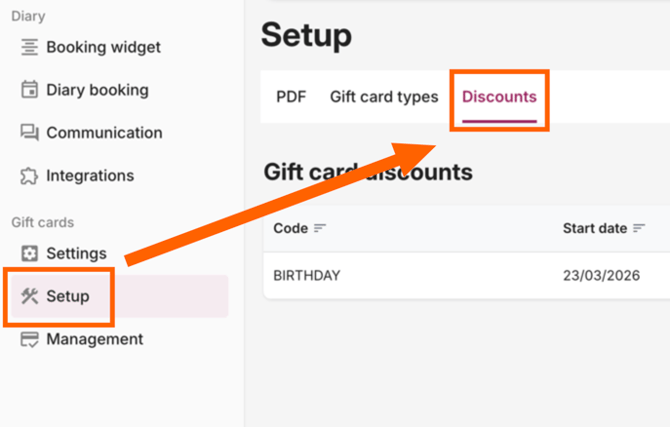
2. Select the "Create New Discount" button in the top right side of panel to start adding discount codes. 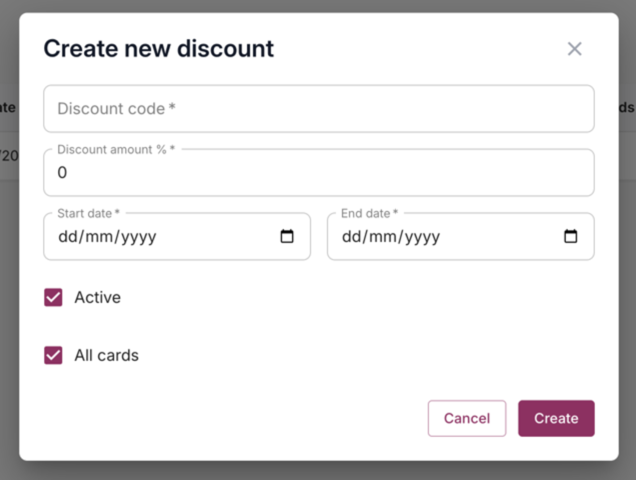
3. In the code field enter in a name for the discount code (eg. Birthday Offer).
4. In the Discount field enter a discount percentage that will be applied to purchases that use this promo code.
5. Enter a start data and end date during which the promotional code will be valid.
6. Tick active to make this discount code active or deselect to deactivate.
7. Tick the box to apply this discount to all cards, or deselect to only apply the code to selected cards.
8. Select Save & Next.
Management
All Giftcards are managed through the management panel. The management area allows staff to redeem cards in the venue. To redeem a card:
- Click "Management" from the left side toolbar, under "Gift Cards"
- On the top right of the Management Portal you have 4 buttons:

Filter
The first button is the filter button. Here you can enter in the required fields to search for gift cards with different statuses, payments types, and expiry dates.
Searching by Partially Redeemed status
Selecting 'Partially Redeemed' as the status allows you to search for cards which still have a remaining balance yet to be redeemed. It is possible to also return these cards within a specified date range, if required. Leaving the date range blank will return all cards with a status of 'Partially Redeemed'
Download
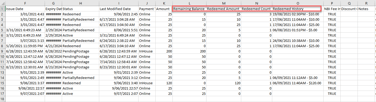
This will allow you to download all of the details of your gift cards into a CSV format file. Applying filters first will restrict which records are returned in the CSV, so if you require all records to be downloaded, ensure you clear all filters first. The CSV includes columns relating to partially redeemed cards, and show the amount remaining on a card, how much has been redeemed, how many times the card has been redeemed and the last date and time an amount was redeemed:
Import
This will allow you to upload a CSV file of gift cards you may have from a previous system
Issue a Gift Card
This allows you to issue complimentary gift cards which can be issued via email to customers or organisations.
a. To create a complementary gift card, or an in-house gift card to sell manually, select the option from the drop down: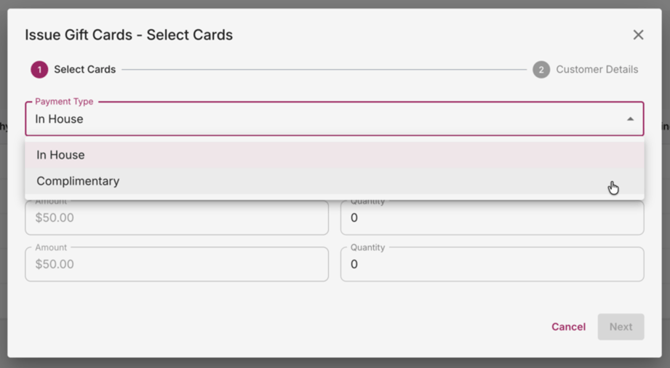
b. Select the type of gift card from the drop down menu that you would like to create
c. Select Next and select the value and quantity of each card.
e. Enter in the details of who you would like issue the gift card to.
f. Enter a message to the recipient of the card.
g. Enter the recipient's email address, or in the case of physical cards, their physical address.
h. Select confirm on the bottom right hand side of the screen to issue cards. Cards will then be issued and will now appear listed in the management portal, ready for redemption.
i. Select Next and you will be taken to the summary page to review what you are about to send.
Management
Redeem, Partially Redeem, Cancel and Reissue
All the Giftcards details are visible from that Management panel and allow the venue to Redeem, Partially Redeem, Cancel, Reissue and add any notes they wish to record against gift card transactions.
If you click on a specific gift card from the "Management" page, you'll see four options: 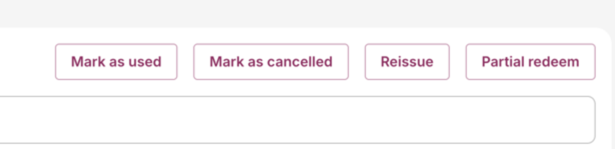
Select Mark as Used to fully redeem a card. This will then change its status to Redeemed in the portal, along with its corresponding time stamp.
Select Mark as Cancelled to cancel a card so it can no longer be redeemed. This can be used to cancel cards if need be before the end of their expiry date.
Reissue card will resend a gift card from the system. This can be used to resend a card to a different email address (for instance, if the purchaser has entered their email details incorrectly). You can edit these details as shown below: 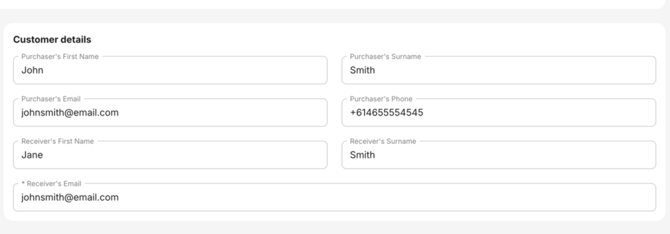
- Edit the Recipients field to the new email address.
- Select Save.
- Locate the recently edited gift card via the search function.
- Select Reissue. This will then send the gift card. to the new address entered in the field.
Partially Redeem allows you to specify an amount less than the total amount of the giftcard. Cards can be partially redeemed multiple times until the full amount of the card is reached.
Transactions
From this panel you are able to view and export all gift card transactions. This is useful for finance teams to do reconciliation and track all purchases from the Gift Card widget.
- Select Transactions
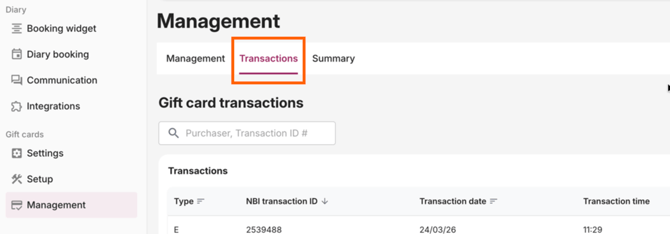
2. Select the download button in the top right side of the Transactions panel. A CSV file will then be download to your local device.
Next to the download button you will also find the filter button to be able to filter for specific payment types.
Summary
From this panel can view an up to date summary of all the gift card purchases, total revenue and fees paid to Now Book It. This is useful to the venue to be able to see at any point in time any additional revenue that has been generated through gift card sales.
If desired, add start and end payment date filters to isolate specific months, quarters or years that you are interested in viewing.