
On iPhone (Using Safari)
1. Open the Safari app on your iPhone.
2. In the address bar, enter mobile.nowbookit.com and log in
3. At the bottom of the screen, tap the Share icon (square with an arrow pointing upward).
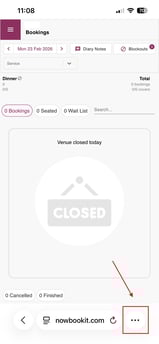
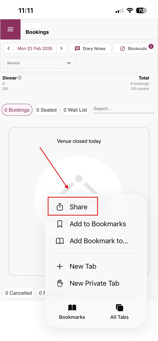
4. Scroll down through the options and tap: Add to Home Screen
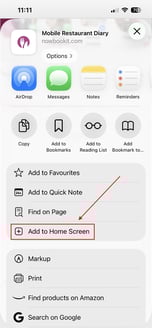
5. You can edit the name if needed (for example: Now Book It). Tap Add in the top right corner.
The Now Book It icon will now appear on your home screen and will open like an app.
On iPad (Using Safari)
The steps are almost identical on iPad.
1. Open Safari on your iPad.
2.In the address bar, enter mobile.nowbookit.com and log in
3. In the top right corner of Safari, tap the Share icon (square with an arrow pointing upward).
4. Scroll down and tap: Add to Home Screen
5. Edit the name if required. Tap Add in the top right corner.
Now Book It will appear on your iPad home screen and can be used like a regular app.
On iPhone (Using Google Chrome)
1. Open the Chrome app on your iPhone.
2. In the address bar, enter mobile.nowbookit.com and log in
3.Tap the arrow in the top right hand corner of Chrome.
4. Tap More
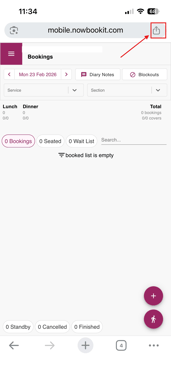
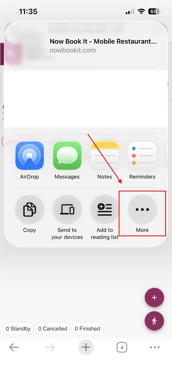
5. Scroll through the menu options and tap: Add to Home Screen
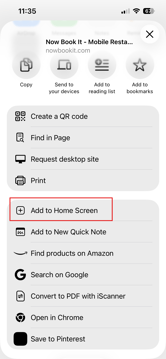
6. You can edit the name if needed (for example: Now Book It). Tap Add in the top right corner.
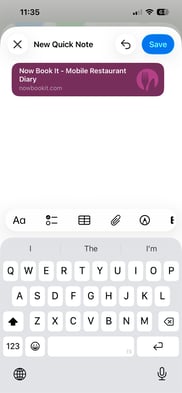
The Now Book It icon will now appear on your home screen and will open like an app.
On iPad (Using Google Chrome)
The steps are very similar on iPad.
1. Open the Chrome app on your iPad.
2. In the address bar, enter mobile.nowbookit.com and log in
3. Tap the three dots (⋯) in the top right corner of Chrome.
4. From the dropdown menu, tap: Add to Home Screen
.png?width=442&height=331&name=image%20(14).png)
5. Edit the name if required. Tap Add to confirm.
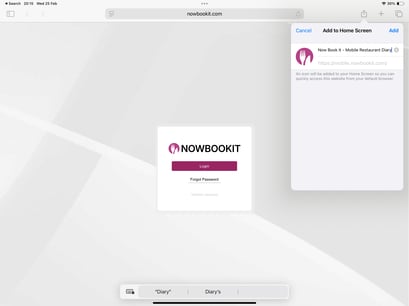
-png.png?width=2732&height=2047&name=image%20(15)-png.png)
Tips
• Make sure you are logged in before adding the shortcut
• If you don’t see “Add to Home Screen,” scroll further down the list.
• This does not download an app from the App Store — it creates a shortcut to the website.
On Android (Using Google Chrome)
1.Open the Chrome app on your Android device.
2. In the address bar, enter mobile.nowbookit.com and log in
3. Tap the three dots (⋮) in the top right corner of Chrome.
4.From the dropdown menu, tap: Add to Home screen
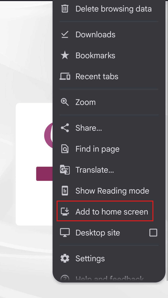
(Depending on your Android version, it may say “Install app” — both options create a home screen shortcut.)
5. You can edit the name if needed (for example: Now Book It).
-jpg.jpeg?width=182&height=323&name=Screenshot_20260223_072913_Chrome%20(1)-jpg.jpeg)
Tap Add, then confirm if prompted.
Tips
• Make sure you are logged in before adding the shortcut
• If you don’t see “Add to Home screen,” refresh the page and try again.
• Some Android devices may prompt you to drag the icon manually onto your home screen.
• This does not download an app from the Play Store — it creates a shortcut to the website.