
* Note: Only users with Account Owner or Account Admin access can connect Stripe to the venue’s account *
1. Login to your Now Book It Admin site, www.admin.nowbookit.com
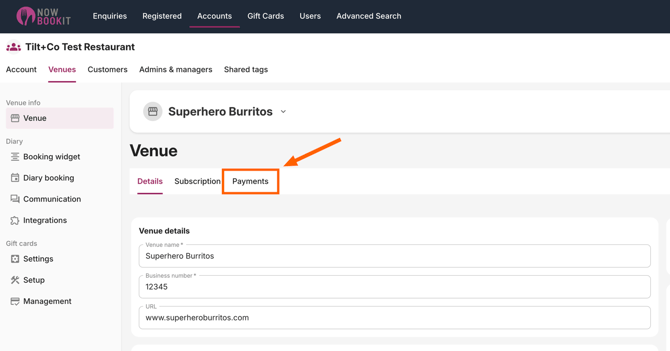
2. Select your Venue.
3. Navigate to the 'Payments' tab.
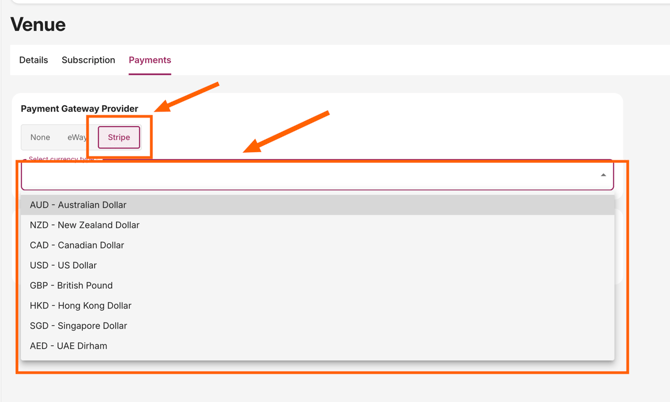
3. Select Stripe as the payment option and select a currency type
4. Click the "Sign Up for Stripe" button
5. After clicking the 'Sign Up' button, a new screen will appear prompting you to enter the email address associated with your Stripe account. Enter this in the field then press 'Submit'

6. On the next screen, you'll be prompted to enter your Stripe password—go ahead and enter it to continue.
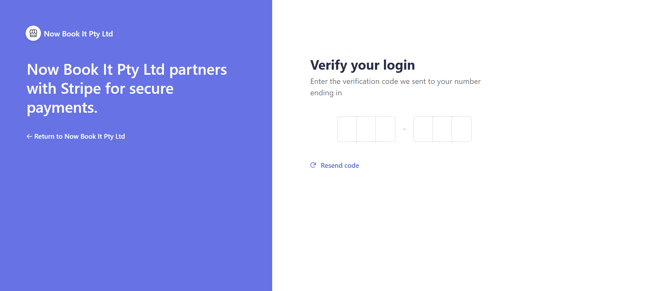
7. Stripe will send a verification code to the mobile number linked to your account. Enter the code in the designated field to proceed.
8. A page will come up with the Stripe account details you are logging into, confirm the account then press 'Save'.
8. Your Stripe account will be connected and ready to use.
Pass Fees to Customer
As part of how Stripe processes payments, they apply their own fees on each transaction (for example, 1.7% + .30 cents per payment for Australia, 2.65% + .30 cents per payment for New Zealand).
By default, these fees aren’t added to what the customer pays. However, if you’d like to pass the Stripe fee on to your customers, you can enable this in your Now Book It Admin settings by following the steps below.
Admin Setup
1. Login to your Now Book It Admin site, www.admin.nowbookit.com
2. Select your Venue.
3. Navigate to the 'Payments' tab.
4. Click the "Charge Stripe Fees" box on the page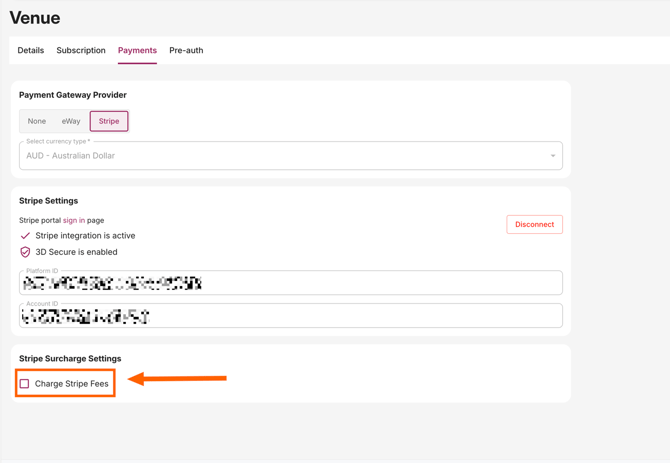
5. This will open up a pop-up box that must be accepted in order to enable this feature. Please review the information in the box and click "Confirm" if you agree to the information in the pop-up.
6. If you click "Confirm," you will see two additional fields appear on the page.
-
- Processing Fee Percentage: this is the exact percentage that Stripe charges you for transactions. Please confirm the percentage with Stripe if you're unsure about the exact amount.
- Charge Stripe Flat Fee: this is an option that will pass the 30 cent fee to the customer as well.
- You can choose to select both the percentage and flat fee, or only the percentage.
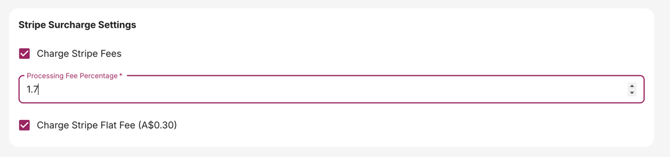
7. Click "Save" on the bottom of the page to save the changes. Once you apply these changes it will immediately apply to any charges you have set on your account.
Widget Appearance
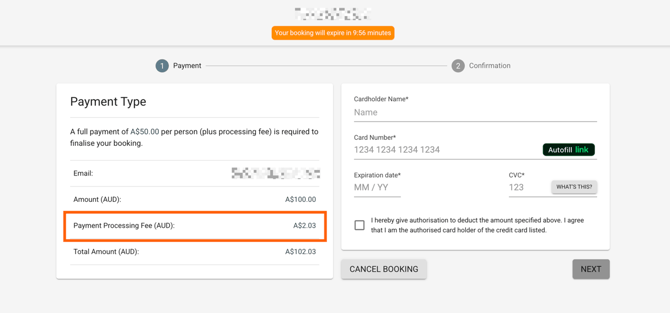
- Once the Stripe Fees have been turned on, they will appear in the widget, as shown below:

Notes
- If you have this feature on, it will also apply to Pre-Authorisation charges automatically.
- If you are using Pre-Authorisations on any of your bookings on your account and if you have set up a custom HTML email for Payment Link emails, you'll need to go to that specific email and click the "Save as a New Version" in the upper right.
- If you are unsure on what specific Stripe fees you are being charged please contact Stripe and verify this before adding this feature, to make sure you're following all applicable local, state, and federal laws.
- For Canadian customers based in Quebec, province law prevents charging these fees to customers.