
Add Reservation Link to your Google My Business profile
Make sure to link to the Reservations page on your website to get the full benefits of your SEO.
- Log in to your Google Business account
- Select the group of dots in the top right corner
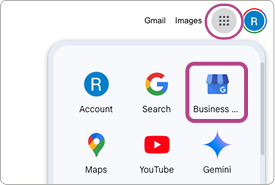
- Select the Business Profile manager icon
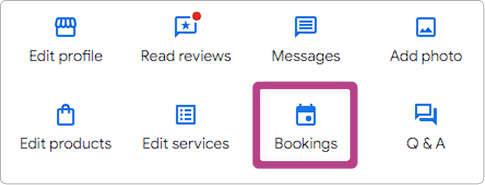
- Select Bookings
- Click on Add Link or Add another link
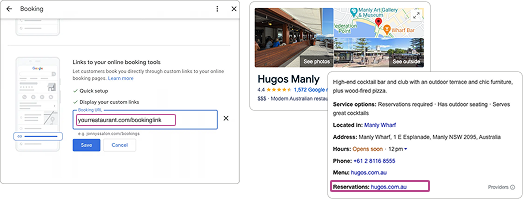
- Insert your website booking URL and save
- Your Google My Business profile will reflect the booking link for customers within 24 hours.
Add Booking Integration to Facebook & Instagram
You can add the Reserve on Social integration on your Now Book It admin portal or through Facebook.
Note: You will need a Meta Business page to create the blue ‘Book Now’ button
Add Through Now Book It (Preferred Option)
-
Log in to your venue’s Now Book It admin portal
-
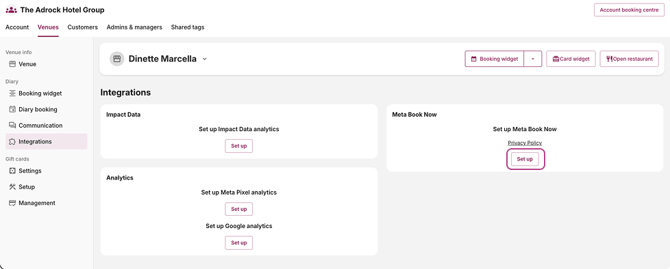
Click the Integrations tab on the left hand side
-
Select the Setup button under Facebook
-
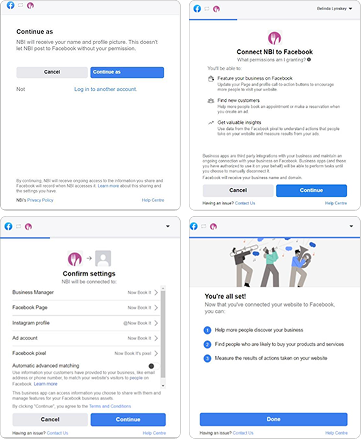
You’ll be redirected to log in to your Facebook page
-
Follow the prompts on the screen to confirm linking
-
You’ll be redirected back to the Now Book It portal
-
The Setup button will now show Disconnect
-
Do not click Disconnect unless you’d like to remove this feature.
- Click "Save" to complete the connection
Add Through Facebook
You must be the account admin for your Facebook business profile
- Log in to your venue’s Facebook page
- Click on the ellipsis (the three dots) on the right
- Select Add Action Button or Edit Action Button
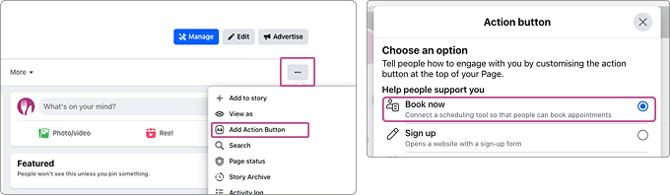
- Select the Book Now button
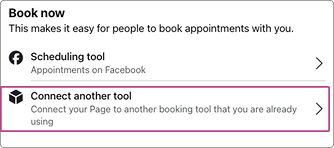
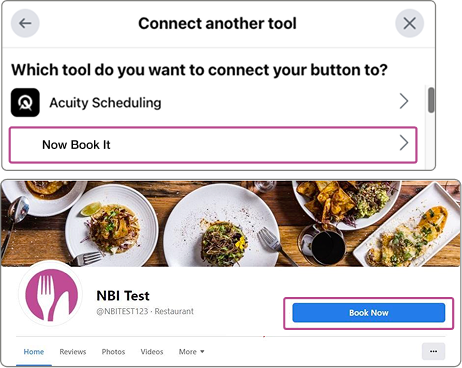
- Select Connect another tool and select Now Book It
- Follow the prompts on-screen to continue
- Grant permissions to connect Now Book It to Facebook
- You will be redirected to the Now Book It portal to log in
- Select the venue to activate & confirm settings to link
- Once done, your page should have a Book Now button
Troubleshooting
If you receive an error saying Currency Null 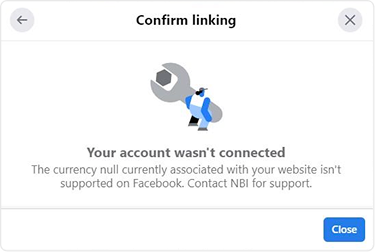
- Log into your venue’s Now Book It Admin Portal
- Under Venue page, look for the Payments tab
- Select Stripe as your Payment Gateway Provider
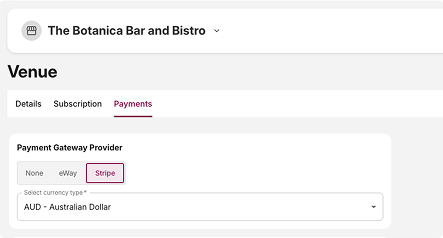
- Select a Currency type (i.e. Australian Dollar)
- Click Save on the bottom right corner
- You’ve created a placeholder Stripe currency setting
- Complete your Facebook integration setup again
If your Facebook settings do not show Now Book It as an option
- Check that you are connecting using the Account Admin role
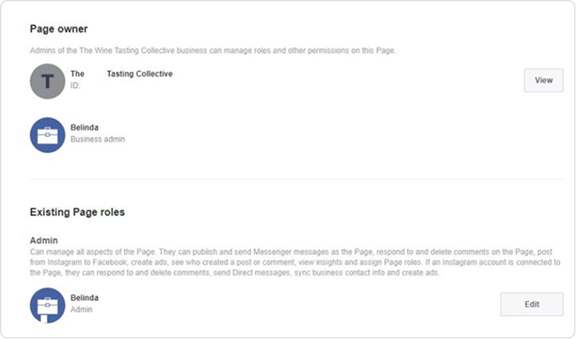
- Log in to your Facebook page as Admin
- Select Settings
- Select Page Roles
- Select the account you are using for the integration
- Click Edit to change the account role to Admin
- Hit Save
- Complete your Facebook integration setup again