
In this article you will learn to easily copy your Services (Lunch, Dinner, Drinks etc.) from your Weekly Schedule (permanent) and make it an 'Event' (one-off) to reflect your normal offerings.
To Start: Go to the three white lines in the top left of your Bookings Diary and select Settings.
This Opens to your Schedule, Click into the Day that you want to copy. Note if it has one Service or more.
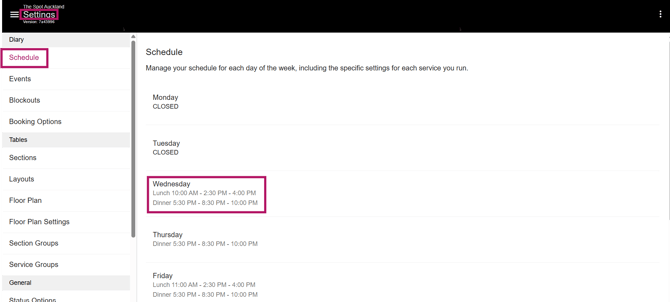
Open The First Service. Go through each page within your Service to note relevant information to recreate this as an Event.
You can use the following Table to ensure the correct Info is being recorded:
|
Looking for: |
Write Info: (Underlined is Mandatory) |
Notes: |
|
Details - Name & Widget Description |
(Paste Here) |
|
|
Times - (Start Time and First Booking Time same for this) |
Start Time: Last Booking Time: End Time: |
|
|
Settings - Booking Interval |
Booking Interval: Booking Duration: Custom Durations: |
|
|
Settings - Maximum Pax |
Bookings Per Interval: Pax Per Interval: Custom Intervals: |
|
|
Settings - Policy Agreement |
(Paste Here) |
|
|
Sections & Layouts |
Used: Not Used: Closed: |
|
|
Payments & Booking Options - Payment |
Payment Type: Per Pax or Per Booking: Required for _ or more: Amount: |
|
|
Payments & Booking Options - Booking Options |
Option Selection: Booking Option Names: Upsell Header & Description: Upsells: Required for _ or more: |
Document version of this table to Download and Edit: Service to Event Template
Now, Navigate to Events in Settings and hit the Plus to create your 'Event'.
Use your Info Table to fill in the process, making it the exact same at your Service and Save.
Note: If you are ready to have this be bookable online, make sure the 'Allow in online booking system' is toggled on.
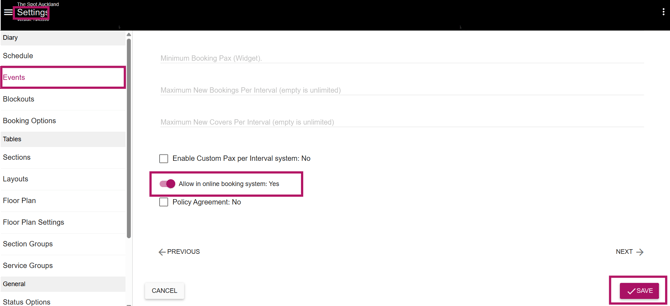
You will now see your Service on your Online Booking Widget (Website). Repeat this process for each service within your day.
Suggestion: Once your Day has passed, Go back to your Event and re-name it 'X Service Template. You will then have ease to Duplicate this 'Event' for any upcoming once-off opening days in the future.
If you have multiple services that usually run at the same times using the same sections, please review 'Example 3 - Events Which Have Overlapping Times' within this article: Overlapping Services and Events