Stopping online bookings in advance of your service start time
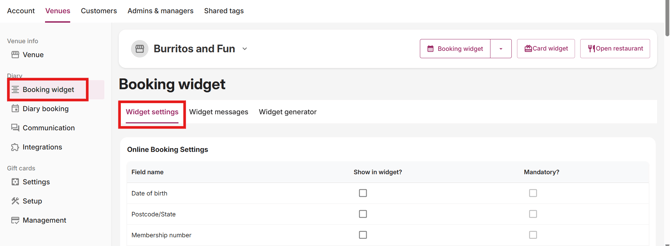
Step 1. Go to your Admin Page
a. Booking Widget > Widget Settings
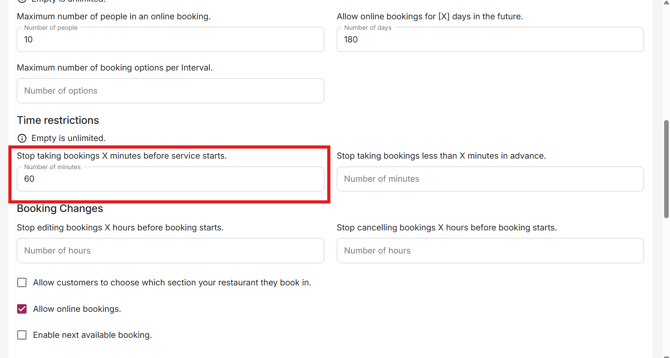
b. Scroll down to the section under Time Restrictions and Navigate to the field that reads Stop taking online bookings X minutes before service starts.
c. Enter your desired time as minutes. Eg: if you would like to stop taking bookings an hour before service starts, you would enter 60.
d. Scroll to the bottom of the page and click Save
Stopping online bookings in advance of the desired booking time of the customer
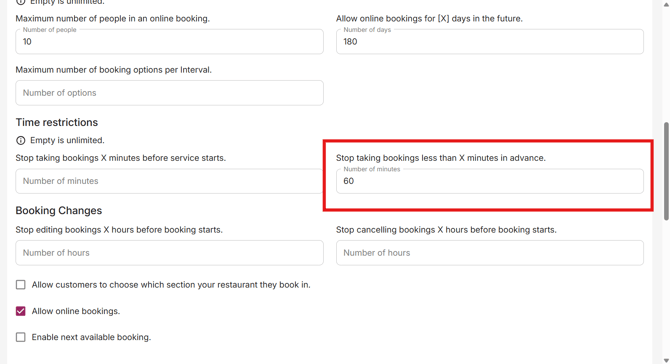
If you are wanting to allow customers to still make bookings during service, but have a cut off time prior to the actual booking time, you can enter your desired time in field to the right of this that's labelled Stop taking online bookings less than X minutes in advance.
a. Widget Settings
b. Navigate to the field that reads Stop taking online bookings less than X minutes in advance.
c. Enter your desired time as minutes. Eg: if the customer wants to make a 12pm booking, and you want their to be an hour advance time, it would be 60 minutes, meaning the latest the customer can make a booking for their desired time is 11am.
d. Scroll to the bottom of the page and click Save
Stopping existing bookings from having the ability to be edited
a. Widget Settings
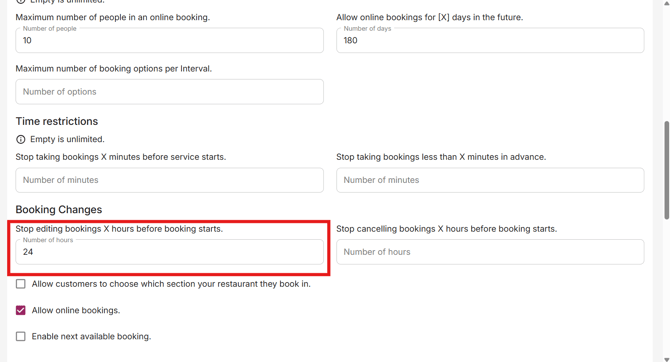
b. Navigate to the field that reads Stop editing online X hours before booking starts
c. Enter your desired time as hours. Eg: if you would like the customer to stop making any changes to their booking a day before service starts, you would enter 24.
d. Scroll to the bottom of the page and click Save
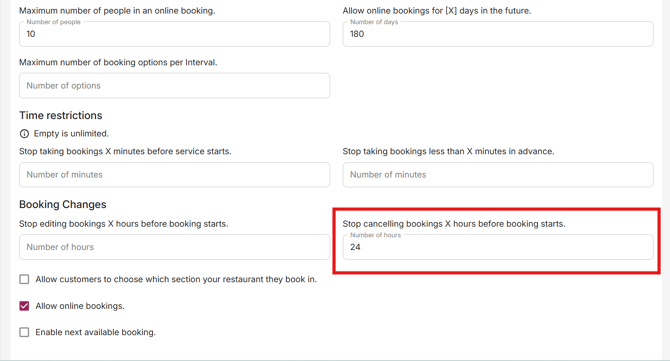
Stopping existing bookings from having the ability to cancel
a. Widget Settings
b. Navigate to the field that reads Stop cancelling online X hours before booking starts
c. Enter your desired time as hours. Eg: if you would like the customer to stop making any changes to their booking a day before the booking, you would enter 24.
d. Scroll to the bottom of the page and click Save